Quick Start
Get Elmo running on your infrastructure in under 5 minutes using the CLI.
Prerequisites
- Docker — Docker Engine 24+ with Docker Compose v2
- Node.js — 18.x or later (for the CLI)
- At least one AI provider API key (OpenAI or Anthropic)
Install the CLI
npm install -g @elmohq/cliInitialize Your Instance
Run the interactive setup wizard:
elmo initThe wizard walks you through:
- Config directory — Where to store your
elmo.yamland.envfiles (default:./elmo) - PostgreSQL — Run Postgres in Docker (recommended) or provide an existing
DATABASE_URL - AI Providers — Configure scrapers (BrightData, Olostep, DataForSEO) and/or direct model APIs (OpenAI, Anthropic, Mistral, OpenRouter); see Providers for details
- Start — Optionally start the stack immediately
Once complete, Elmo generates two files in your config directory:
| File | Purpose |
|---|---|
elmo.yaml | Docker Compose configuration for all services |
.env | Environment variables, secrets, and API keys |
Start Elmo
If you didn't start during init, bring everything up with:
elmo compose up -dThis pulls the Docker images and starts all services. Once they report healthy, open http://localhost:1515 in your browser.
System Architecture
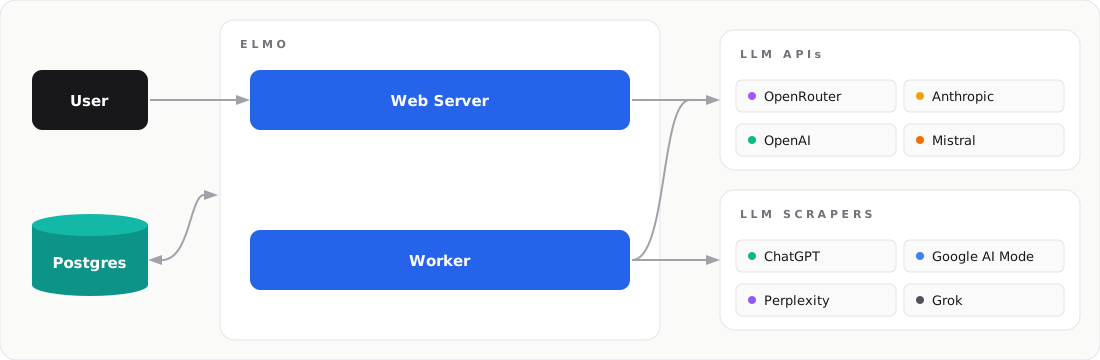
| Service | Role |
|---|---|
| Web | Dashboard UI and REST API |
| Worker | Background scheduler that drives prompt runs |
| Postgres | Shared database and job queue |
| LLM APIs | Direct API calls (OpenAI, Anthropic, OpenRouter) |
| LLM Scraper | Scrapers for ChatGPT, Claude, and Google AI Mode (Brightdata, Olostep) |
| Elmo CLI | Generates elmo.yaml + .env and runs docker compose |
CLI Commands Reference
Once Elmo is running, these commands help you manage it:
# View live logs
elmo compose logs -f

# View logs for a specific service
elmo compose logs -f web

# Check service status
elmo compose ps

# Stop all services
elmo compose down
What's Next
With Elmo running, head to the User Guide to create your first brand, configure prompts, and start tracking AI visibility.
Was this page helpful?